

Direct Answer: How to Get a Free Business Email on Your Custom Domain
To set up a professional business email on your custom domain without paying for monthly subscriptions like Google Workspace or Microsoft 365, you can use Lark Suite (Lark Starter Free Plan). It provides free custom domain email hosting for up to 20 users, 100 GB of pooled cloud storage, native desktop and mobile applications, and up to 20 free email aliases.
Scope of This Guide
After reading this guide, you will be able to:
- Connect an existing domain (purchased from registrars such as Spaceship or Namecheap) to Lark Suite.
- Configure the required DNS routing and ownership verification records.
- Set up your primary business email address (such as
contact@idusha.com). - Enable cryptographic DKIM authentication to verify outgoing emails from your domain and significantly improve email deliverability.
- Create free email aliases routing into a single mailbox.
The Situation: Why I Looked for a Free Business Email
I recently bought a custom domain for one of my projects and needed a business email address for it. I searched in several places to understand how to set one up, but almost every service available required a paid recurring subscription. Because this was a lightweight project, I did not want to spend money each month solely for email hosting, even if the fee was relatively small.
I began investigating whether there were reliable platforms offering free business email hosting. I discovered multiple platforms and evaluated a few of them hands-on. Out of those options, I found a free business email hosting platform that suited my project requirements: Lark Suite.
The most critical part of this setup is the Security Settings (SPF, DKIM, DMARC), which I have documented in detail in the security section below.
Having a domain-branded business email adds significant credibility to a business or software project. Furthermore, having an active business email unlocks valuable benefits, such as startup program offers, developer tools, and verification credits provided by companies like Google. I will cover those opportunities in future notes.
The Platform: Lark Suite Free Starter Plan
The platform used in this guide is Lark Suite.
Under the Lark Free Starter plan (free as of October 2026 at the time of authoring this guide), you receive:
- Free business email hosting for up to 20 users
- 100 GB of shared cloud drive storage
- Built-in team chat, video meetings, and document collaboration
(Note: While Lark’s Starter tier is free at the time of writing, SaaS provider features, storage limits, and regional availability may evolve over time. Standard domain registration fees paid to your registrar still apply).
Step-by-Step Setup Guide
1. Prerequisites (Your Custom Domain)
Before starting the setup, you must already have a custom domain registered through a domain registrar such as Spaceship, Namecheap, or any registrar of your choice, with access to its DNS management dashboard.
2. Create an Account on Lark Suite
- Visit the Lark Suite website: https://www.larksuite.com.
- Click Try for free and complete the sign-up form.
- Select For personal use and click Get started.
3. Add Your Custom Domain in Lark Admin Console
- Navigate to the Lark Admin Console: https://www.larksuite.com/admin.
- Go to Mail → Service Management → Domain Management.
(If you cannot find the menu path, type Domain Management into the top search bar). - Type the domain you purchased (for example,
idusha.com). - Click Confirm and Submit.
- Lark will display the required DNS records (including MX and TXT verification parameters).
- Open the DNS Settings of the registrar where you bought your domain (such as Spaceship or Namecheap), and configure the parameters exactly as specified by Lark.
- Once configured in your DNS settings, return to the Lark Admin Console and click Verify.
- After verification completes successfully, click Next.
4. Configure Your Business Email Address
- You will be redirected to the Configure email entry and business email address page.
- Under the first section, click Configure now.
- Your name will appear with the business email status shown as Not set up.
- Click Add and type the address name you want before your domain.
- For example, to create
contact@idusha.com, the@idusha.comsegment is automatically provided. You only enter the prefix (contact).
- For example, to create
- Review any additional details you wish to adjust, and click Save.
5. Adjust the Email Tab Position in Lark App (Optional)
The primary mailbox is now configured. To optimize daily access in the Lark application:
- On the Configure email entry and business email address page, locate the second option: (Optional) Adjust the position of the email entry in the navigation bar.
- Click Change now → Edit navigation.
- Drag and drop the Email module box to the very top of the navigation list.
- Click Save.
- At the bottom of the Configure email entry and business email address page, click the Confirm button to activate your domain.
The Critical Step: Security Protocols (SPF, DKIM, DMARC)
This is the most essential technical step in the entire process.
Simply creating an email address is not enough. If security protocols like SPF, DKIM, and DMARC are not configured properly, receiving mail servers will view outgoing emails as unverified, frequently routing them into recipients’ Spam folders.
Configuring DKIM helps receiving mail systems verify that messages are authentically sent from your domain. While authentication significantly improves deliverability and protects against domain spoofing, inbox placement is ultimately subject to receiving server policies, content filtering, and sender reputation. In my first-hand testing on idusha.com, outgoing messages delivered directly to the inbox once DKIM was verified.
How to Enable DKIM Authentication
- In the Lark Admin Console, navigate to:
Mail → Security and Anti-spam → DKIM Authentication
(If you cannot find it, search DKIM Authentication in the top search bar). - On that page, locate the action row for your added domain name and click Turn on.
- Keep the recommended settings as provided and click Next.
- Copy the generated DKIM DNS record provided by Lark.
- Open your domain registrar’s DNS settings where you purchased your domain, add the new TXT record, and save it.
- Return to Lark and click Verify.
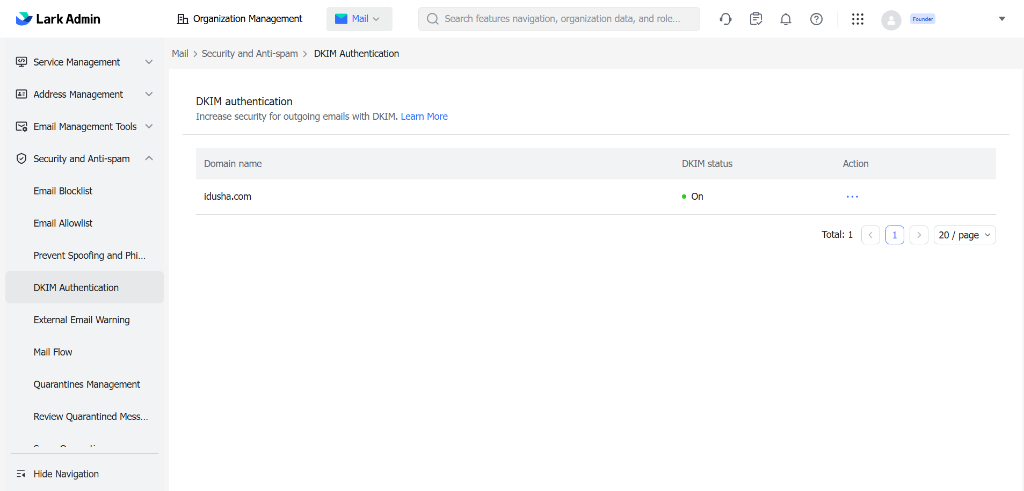
Now your setup is completely configured. In my first-hand test on idusha.com, outgoing emails delivered straight to the recipient’s inbox. DKIM ensures receiving mail servers verify that emails are authorized by your domain, maximizing deliverability while protecting against spoofing.
Bonus: Using Up to 20 Free Email Aliases on One Account
From the same account, you can use up to 20 business email addresses for free, such as:
idusha@idusha.comcontact@idusha.cominfo@idusha.com
Emails sent to any of these alias addresses are received directly into your primary mailbox, eliminating the need to manage multiple logins.
How to Add Email Aliases
- Return to the section where you previously configured your business email details.
- Click Edit.
- Scroll down to find the Business email alias field.
- Add the alias prefix you want (such as
info,support, orhello). - Click Save.
Cross-Platform Application Access
You can access and manage your new custom domain business email across devices:
- Through Lark Web at https://www.larksuite.com
- Through native desktop and mobile applications available for Windows, macOS, Linux, Android, and iOS
Frequently Asked Questions (FAQ)
Can I get a custom domain business email completely free in 2026?
Yes. Lark Suite provides a Starter plan (free at the time of writing) that allows up to 20 users with 100 GB of pooled cloud storage, custom domain email routing, and desktop and mobile apps with zero recurring monthly subscription fees.
Why do custom domain business emails land in the recipient’s Spam folder?
If a custom domain lacks valid security records such as SPF, DKIM, and DMARC, receiving mail servers classify incoming messages as unverified or potentially spoofed, routing them into Spam folders. Configuring DKIM verifies domain authorization and improves deliverability, though inbox placement also depends on overall sender reputation.
What is an email alias and does it cost extra on Lark Suite?
An email alias is an alternative address (such as contact@, info@, or support@) that forwards directly into your primary mailbox. On Lark Suite’s Free Starter Plan, you can create up to 20 email aliases per account at no additional charge.
Which domain registrars support Lark Suite free business email?
Any registrar that provides standard DNS management supports Lark Suite, including Spaceship, Namecheap, Cloudflare, Porkbun, and GoDaddy.
Conclusion & Discussion
Setting up a professional email identity does not require expensive monthly software commitments when launching an initial project or testing an idea. By pairing an active custom domain with Lark Suite and ensuring proper DKIM authentication, you establish reliable email delivery at zero subscription cost.
Do you currently use any other reliable free email alternatives? Let us discuss in the comments below.
- Idusha Manaka
AI Systems Architect & Full-Stack Developer
Official Portfolio • Projects
Editorial Disclosure: This guide is written from first-hand setup and testing on idusha.com. Technical steps reflect the current interface of Lark Suite and standard DNS registrar configuration.